CRM KitsChurches and ministries
Every guest followed up, every team filled.
A workspace for the church office: every first-time guest household on one path from a planned visit to connected, with the days since their first visit and who owns the follow-up, beside a serving roster that shows which teams and positions are short on the Sundays ahead. Since 0.2.0 it keeps the whole church record around them: people and households linked to Seedly contacts, groups, events, attendance and usher headcounts as the office records them, care requests as categories, giving exactly as the office typed it in and messaging readiness. Children are recorded only as a first name and an age band.
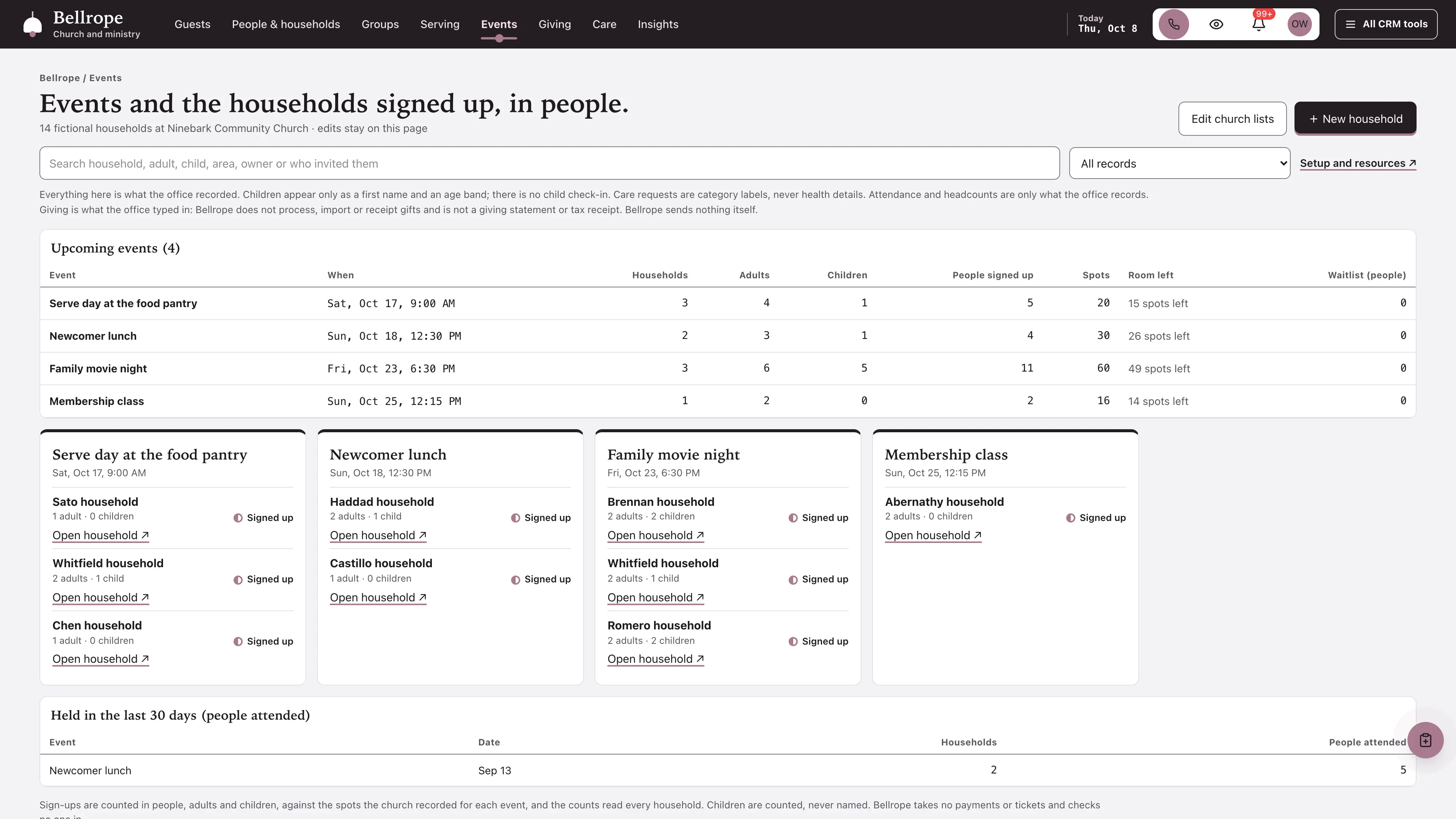
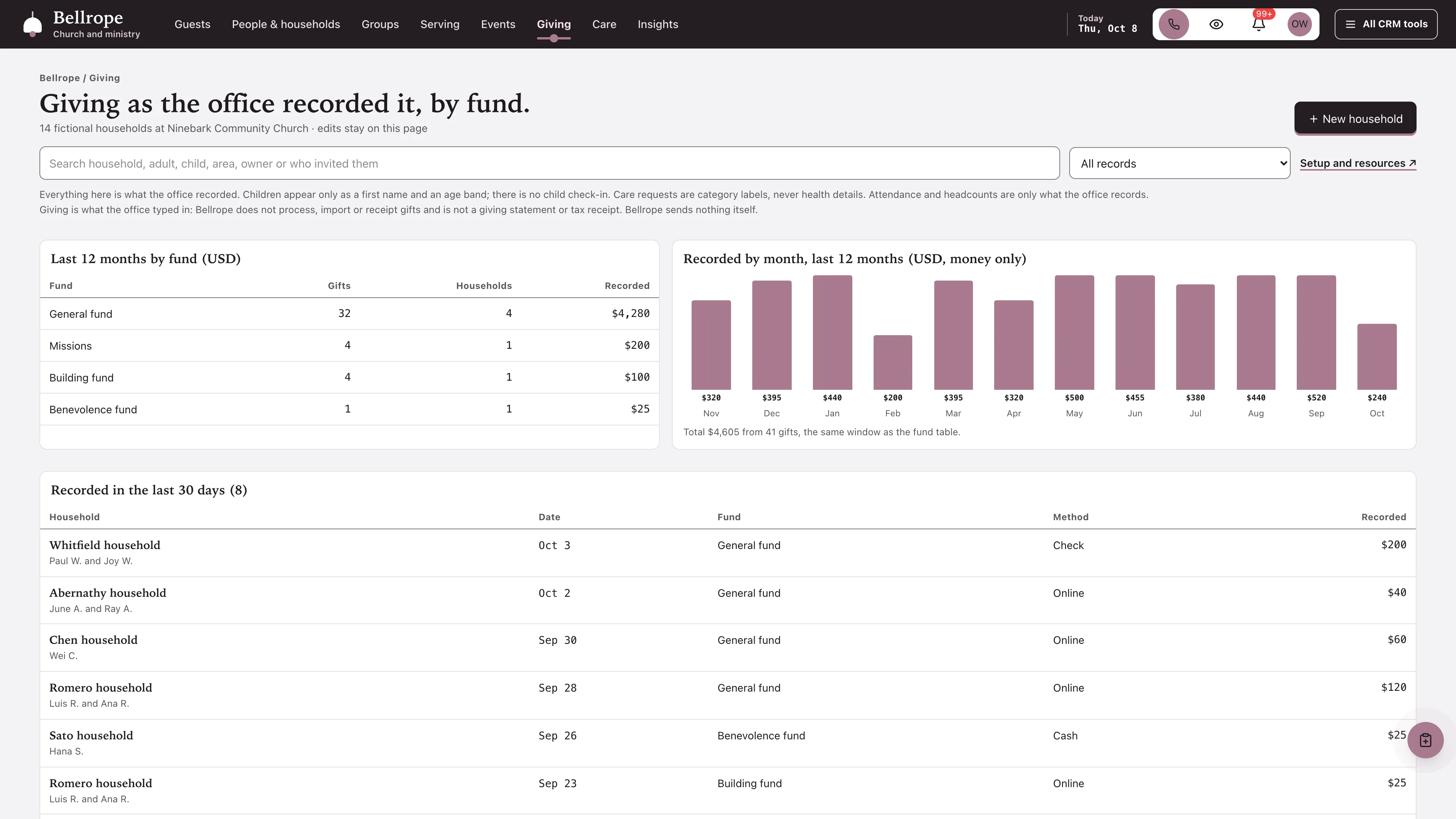
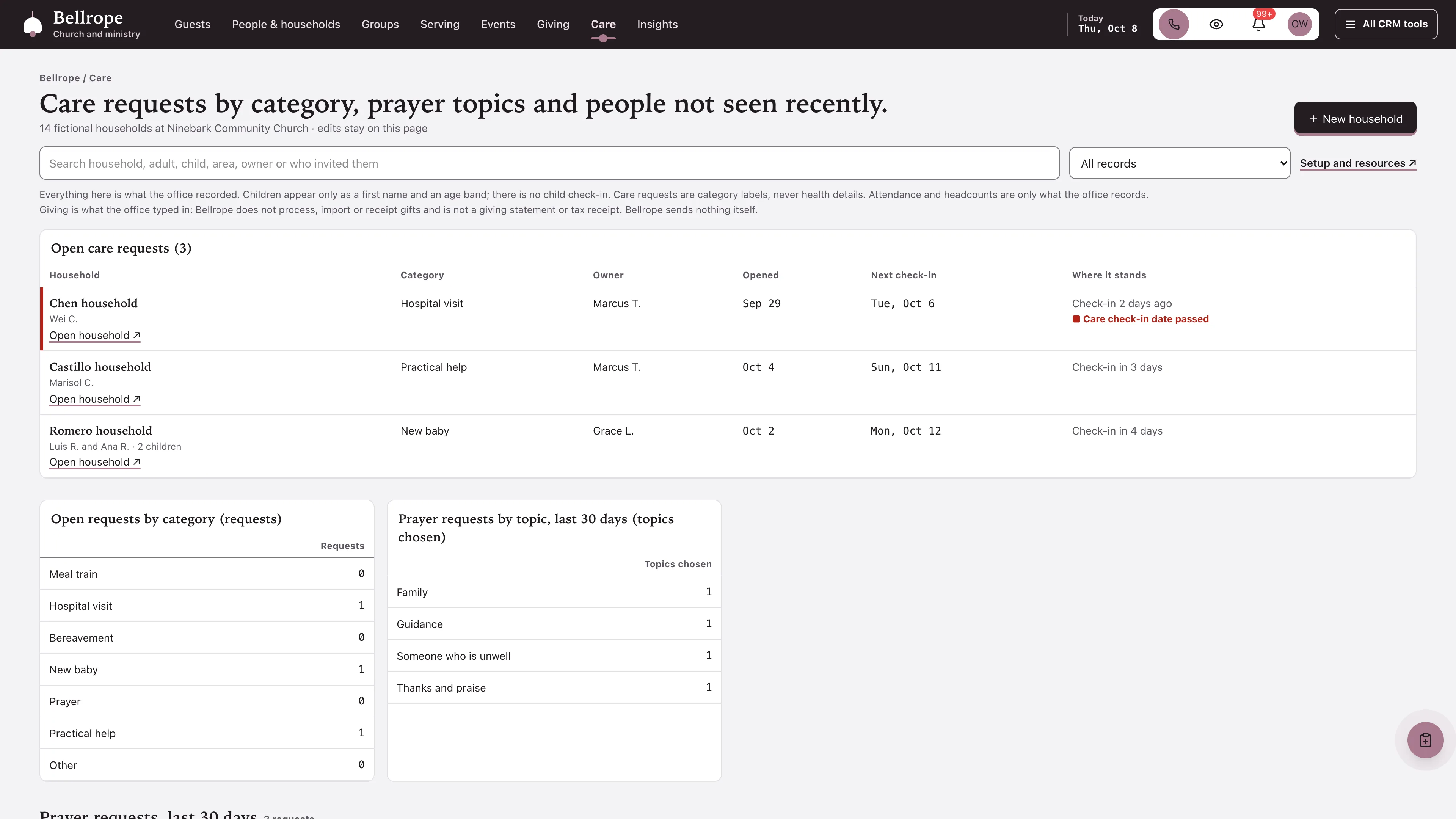
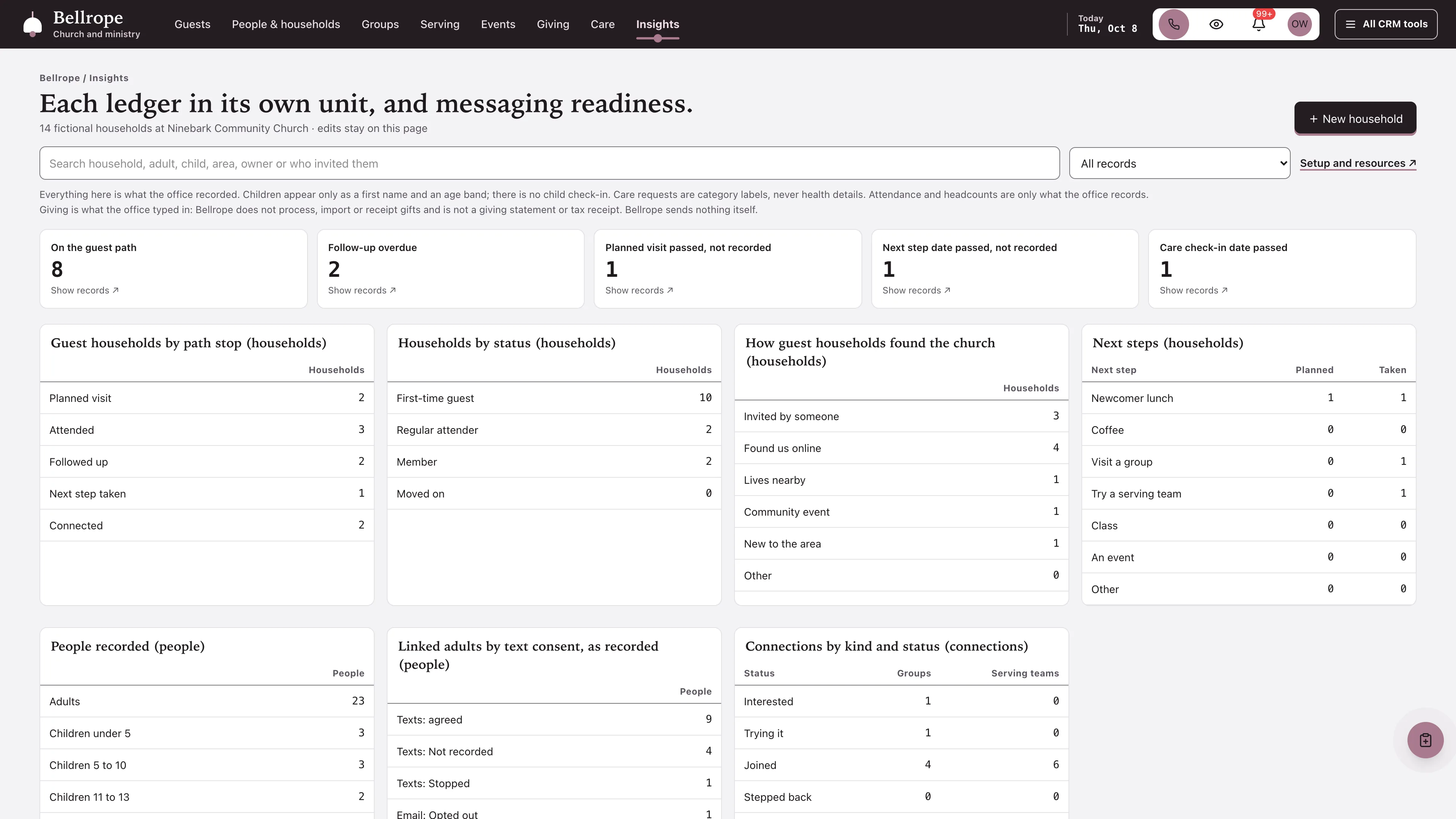
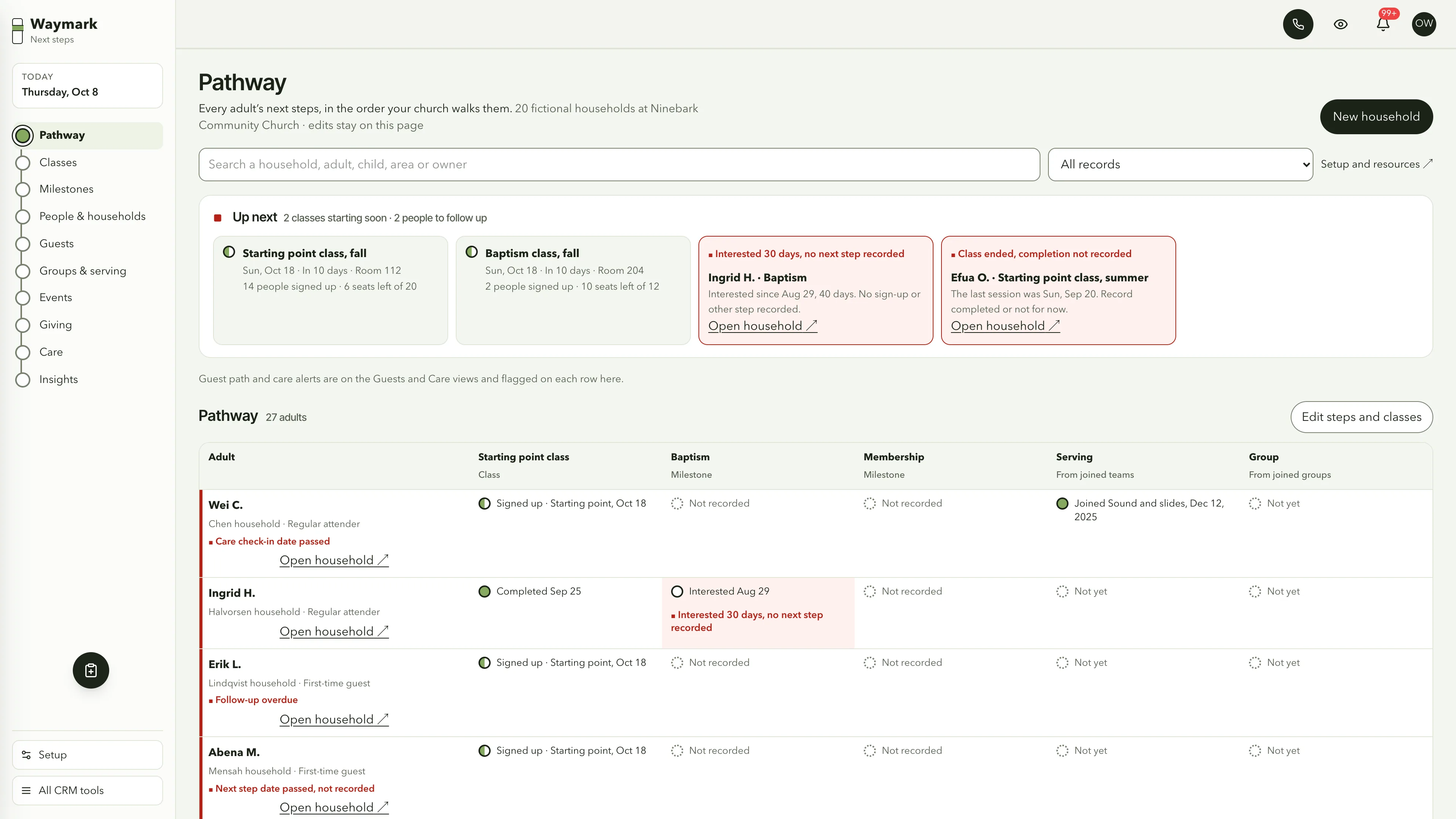
Follow every first-time guest to connected.
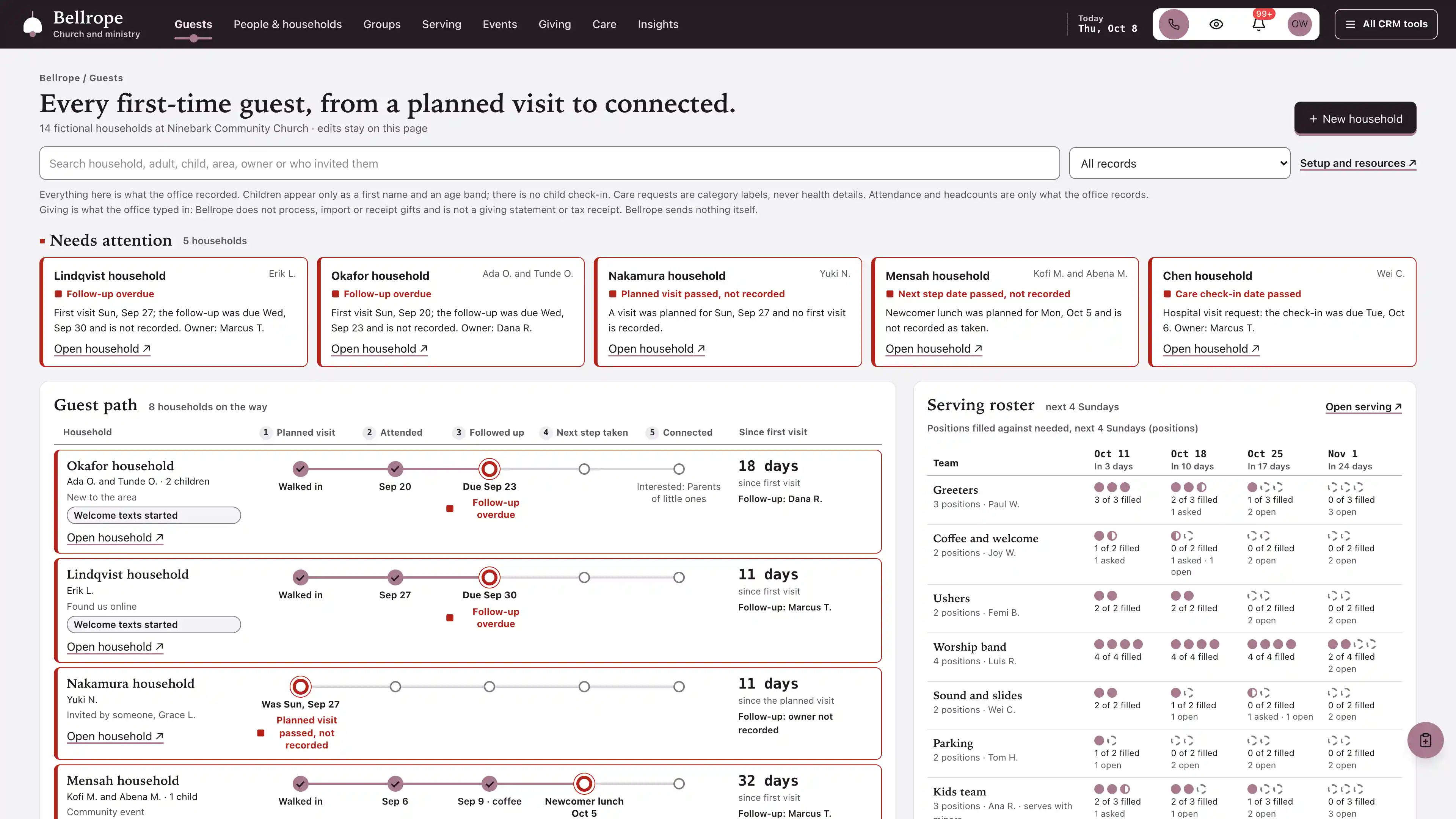
A needs attention strip of every household with an alert, then one row per guest household on a track of five stops: planned visit, attended, followed up, next step taken and connected. Each stop shows the date it happened or what is due, with the days since the first visit and the follow-up owner beside it. The serving roster for the next four Sundays sits alongside, and below come the households connected in the last 60 days and the card inbox: connection cards and planned visits from people not on a household yet, ready to become a household or join one.
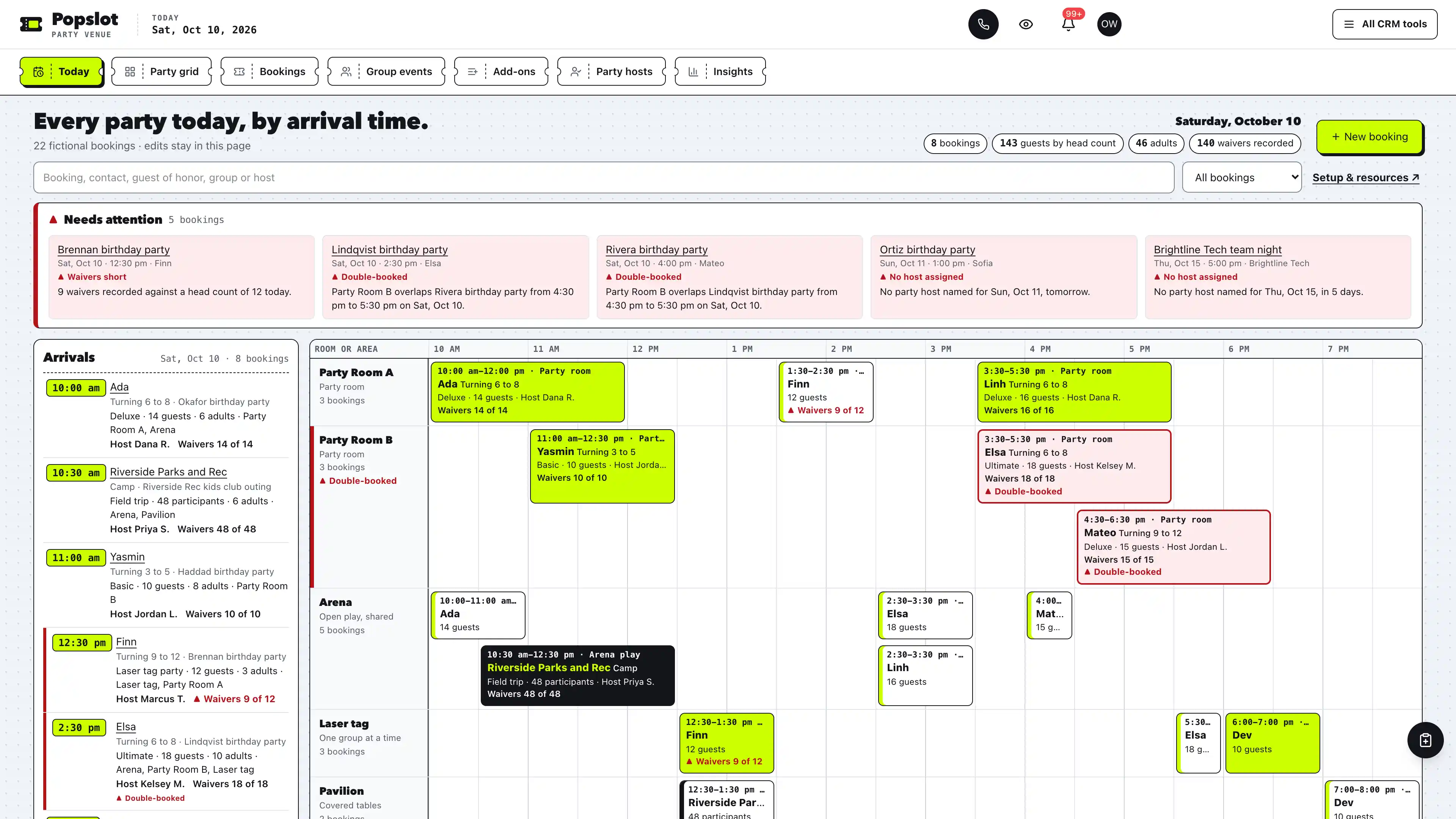
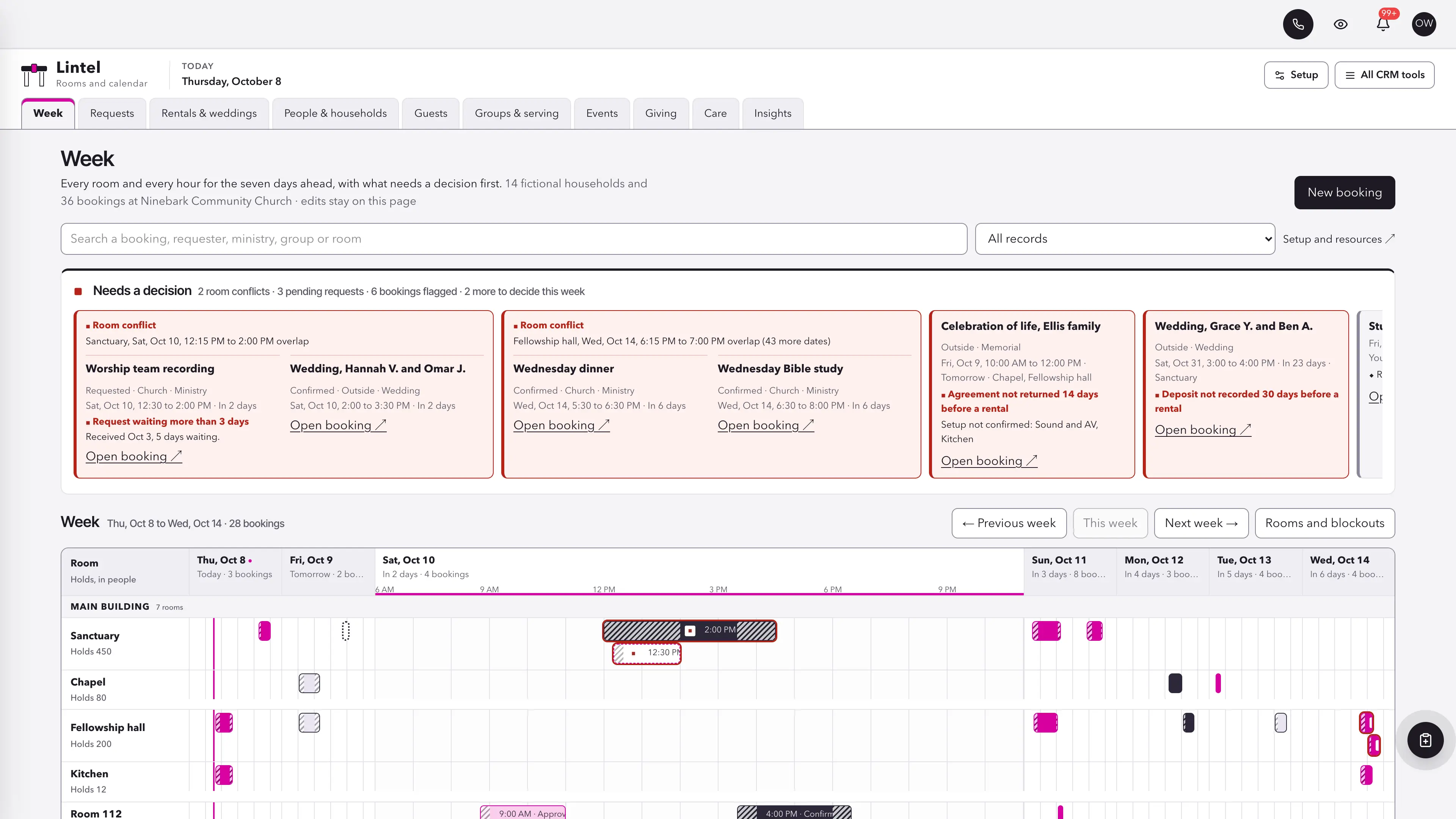
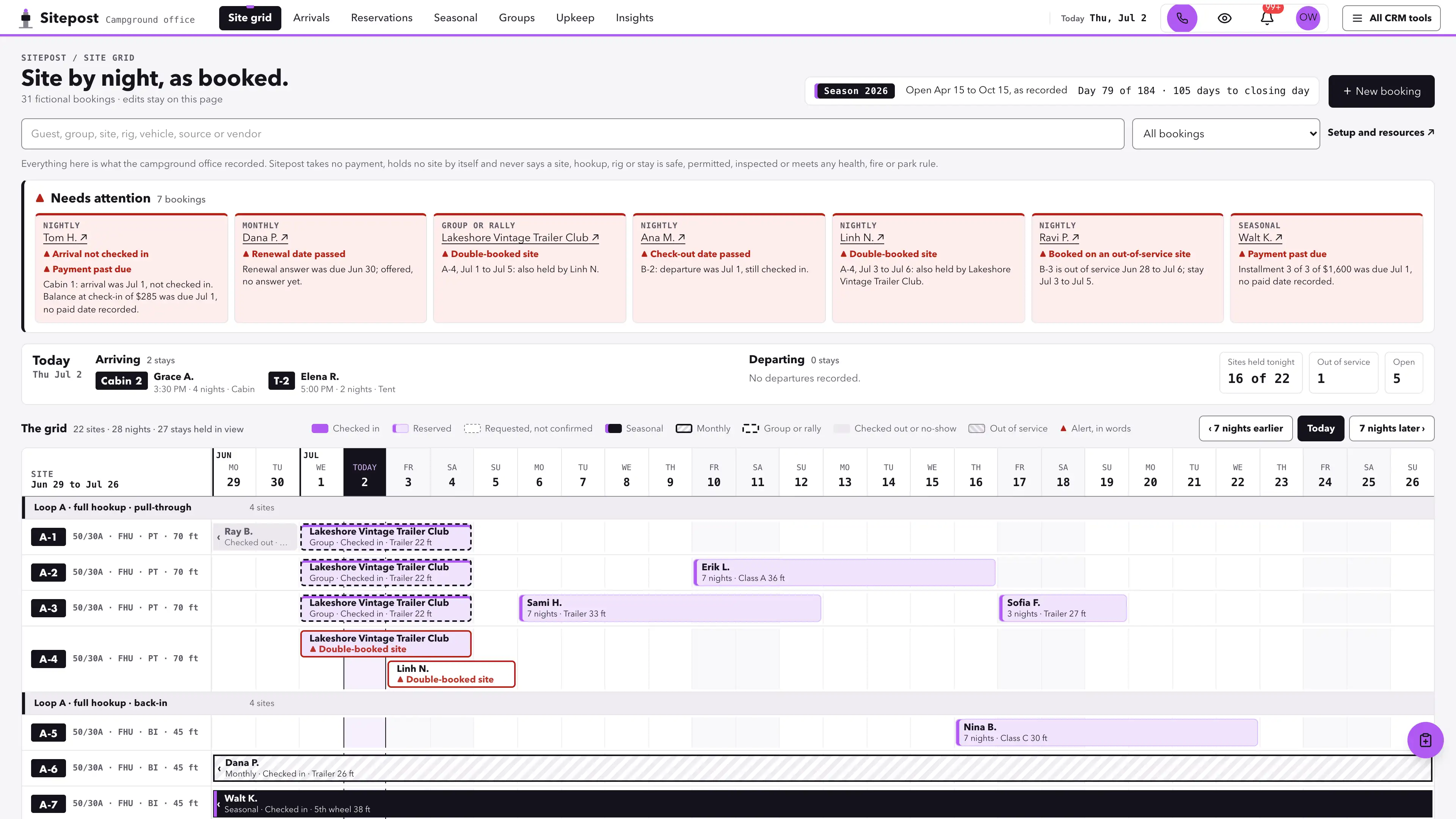
Actual interface captures with fictional sample data. Open a screenshot to see it full size.
What’s in the kit
Screens
- Guest path operating view with the serving roster and a card inbox
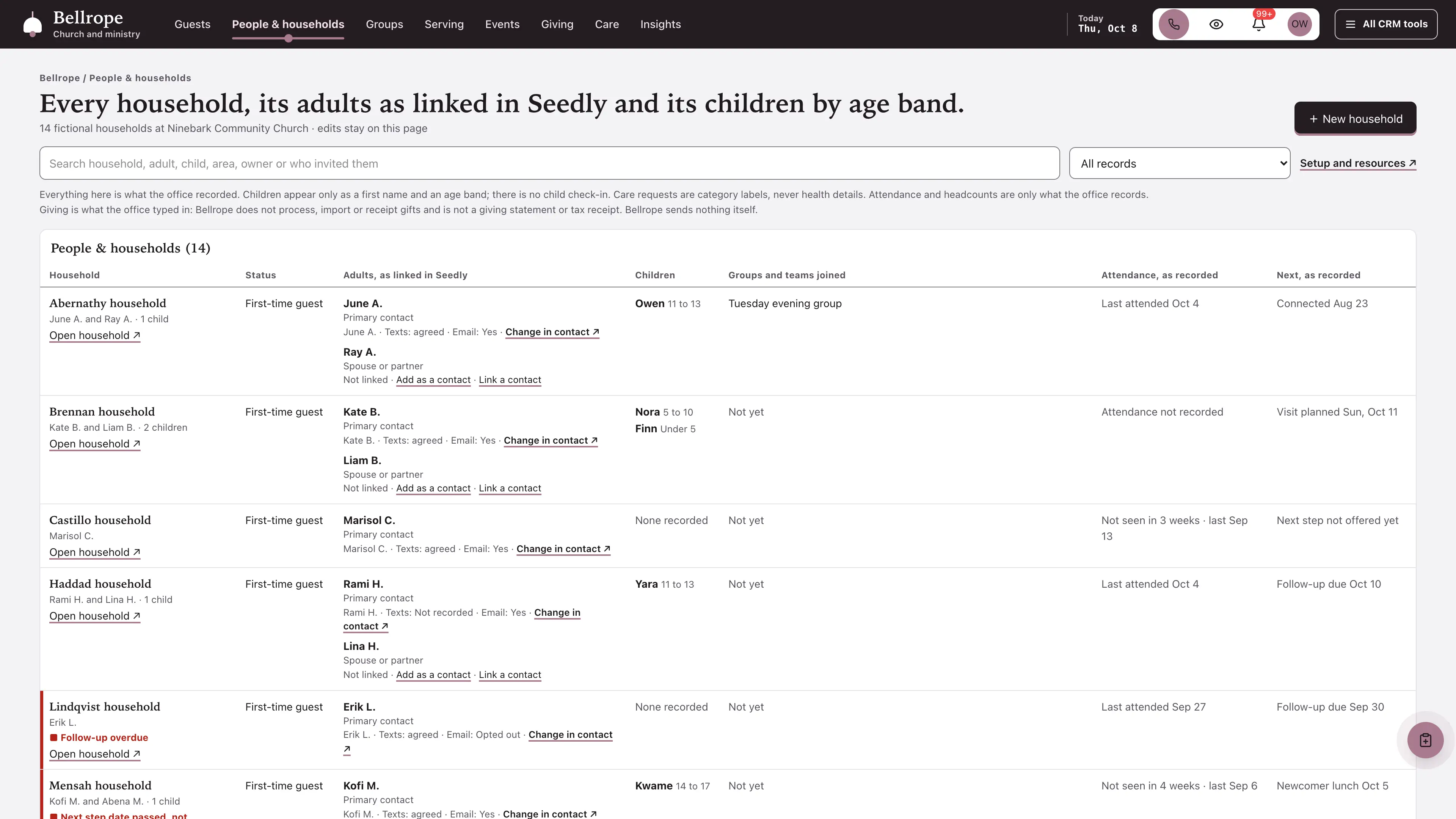
- People & households operating view with linked contacts
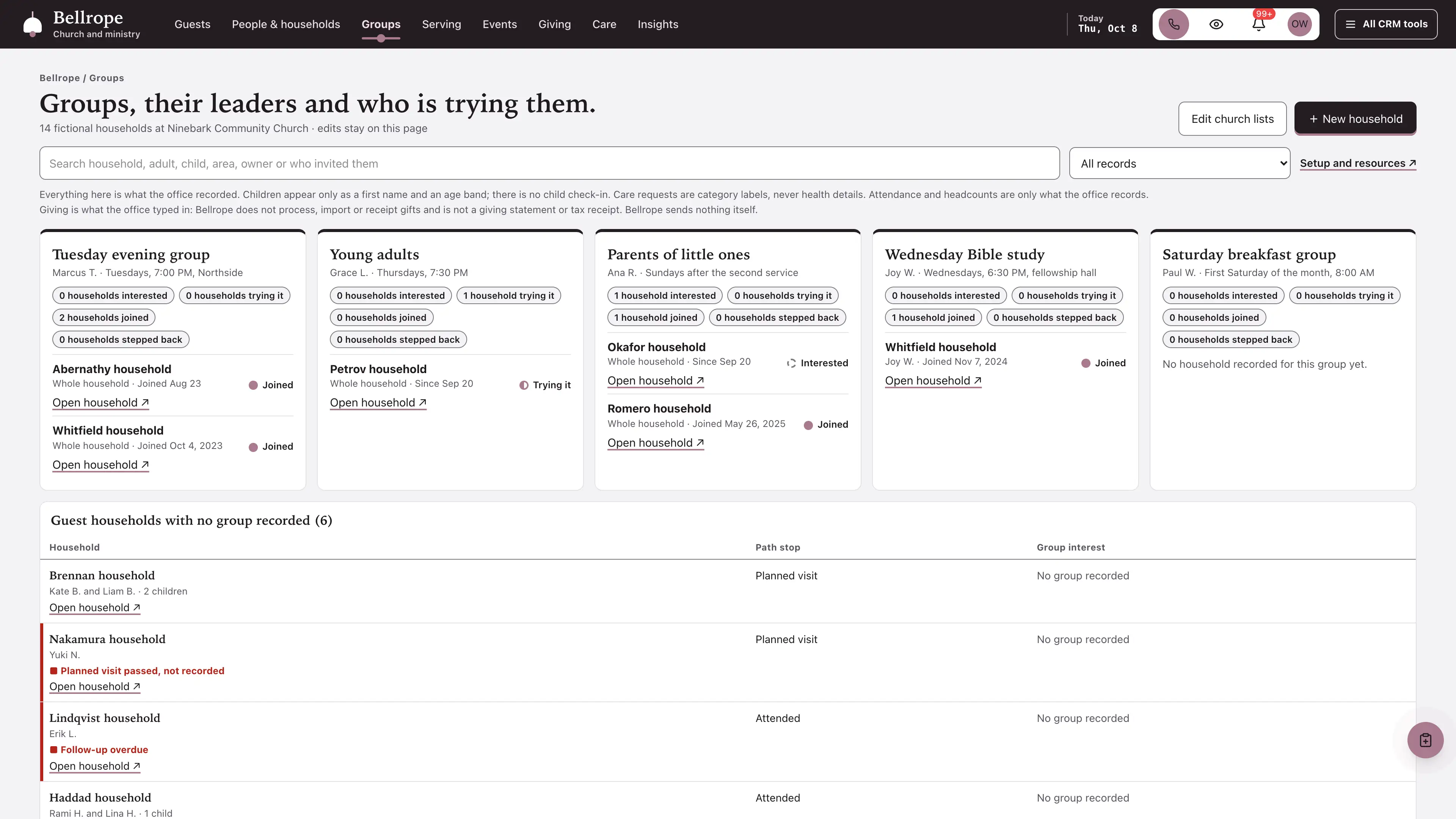
- Groups operating view
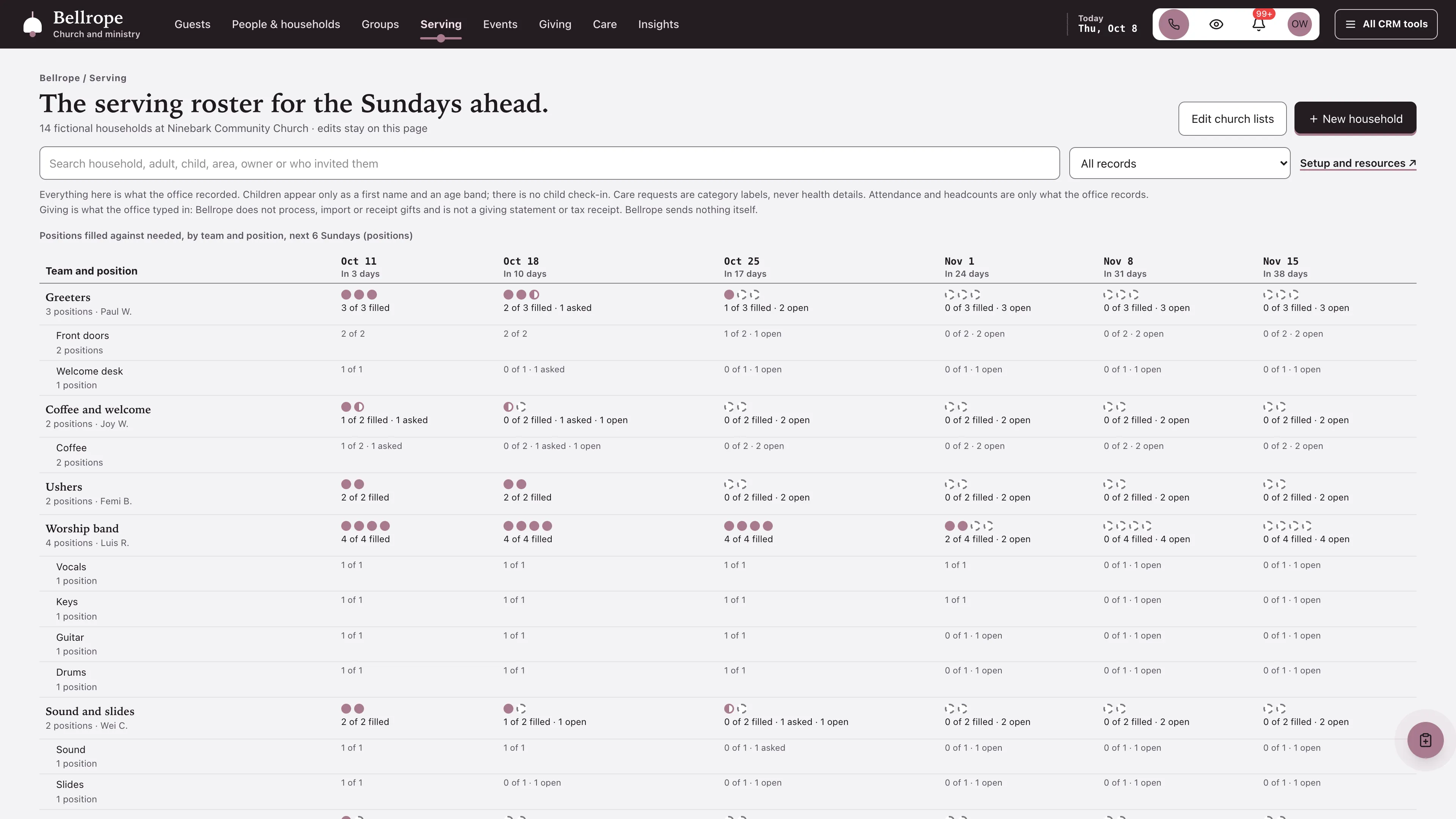
- Serving roster by team and position
- Events and sign-ups counted in people
- Giving as recorded, care with prayer topics and not seen recently, and insights views
- Three message drafts in send mode with every send step off, plus nine task drafts
- Five closed-choice native form drafts and five editable document templates
- Shared church tags, segments, a list, custom values, snippets, a connection card QR code and a pastor calendar
- New in 0.2.0, free for 0.1.0 owners: attendance and usher headcounts as recorded, three message drafts with every send step off, a not seen recently list with re-engagement, and Households renamed People & households
four pipelines
- Guest follow-up · 8 stages
- Serving teams · 7 stages
- Group leaders · 7 stages
- Care requests · 7 stages
Optional. Install the ones that match your work, or connect drafts to a pipeline you already use.
twelve workflow drafts
- Planned visit welcome
- First visit follow-up
- Next step invitation
- Next step check
- Group leader introduction
- Thirty-day check-in
- Serving team first conversation
- Serving roster confirmation
- Care request owner
- Guest welcome from the connection card (texts and emails, every send step off)
- Guest welcome after a recorded first visit (texts and emails, every send step off)
- Re-engagement (a text, a call, an email and a task, every send step off)
Inactive until you review and publish them. Message steps ship switched off.
Forms and documents
- Plan your visit
- Connection card
- Prayer request
- Serving team interest
- Event sign-up
- Membership covenant
- Volunteer policy
- Guest follow-up sheet
- Serving roster sheet
- Group leader introduction
Editable native forms and document templates. Forms collect information for staff review.
Sample workspace
Explore Ninebark Community Church, a fictional church of 14 households with 23 adults and 10 children recorded as a first name and an age band: ten first-time guest households, eight still on the way from a visit planned for Sunday to a next step taken and two connected in the last 60 days, four households who already attend, one of them not seen in ten weeks, five households with an alert, seven serving teams needing 18 positions per Sunday on a two-service roster, five groups, five events, recorded attendance, 41 recorded gifts, care requests and 24 usher headcounts. Sample edits stay in memory and reset on navigation or reload.
No sample customers are added to your CRM.
Setup and source
- Guided setup and compatibility report
- Private rollback receipt
- AI-agent guide for customized installations
- Original editable source, configuration, and tests
How setup works
Full installation guideCheck your Seedly
Extract the kit and run the guided setup. It checks your installation and flags customized files before it changes anything.
Connect the helper
Deploy the included helper from your backend source, then build your web app and choose any starter pipelines and drafts.
Make it yours
Set business name, descriptor, default pipeline name and message mode. Then sign in and check the workflows and permissions your team uses.
Technical details and compatibility
Seedly CRM 5.8.4 · extension API 1. Node.js 20 or newer. The installer checks supported integration-file versions and does not deploy your web app or backend. The included original backend helpers are required for connected household creation and edits, the church lists, linked contacts and setup. They preserve native account permissions, unrelated custom fields and row history, keep households, people, positions and money apart, refuse children's ages and names lists, allergy and custody notes, health details, access codes, logins, card and bank numbers and Social Security numbers as a guard against accidental entry rather than a guarantee, refuse dates still ahead for things that already happened, and check revisions before saving. They read the household pipeline page by page (up to 10,100 open households, with a note beyond that). When updating from 0.1.0, replace the source in your working tree first (remove 0.1.0 with its own installer, then install 0.2.0, with nothing deployed or built in between), then deploy the backend, then build and deploy the web app; QUICKSTART.md covers a removal that refuses an edited file, a backend kept in a separate repository and hand-merged installs. A page still open from 0.1.0 keeps working against the new backend until the web app is deployed, though a household it saves drops out of that page until it runs 0.2.0. Deploy them from the authoritative backend source. Pipelines, drafts, forms and documents are optional.
One contact-linked household record holds the household's status, how it found the church and who invited it, the guest path from planned visit to next step, an office note, its adults linked to Seedly contacts, its children as a first name and an age band only, the groups and serving teams it joined, recorded attendance, event sign-ups, gifts as recorded by fund, care requests as category labels and an editable checklist. The church's name, time zone, services, funds, teams with the positions each needs per service, groups, events, serving roster and usher headcounts live in the account's own church lists. The shared church lists fit one to three weekly services; a church with four or more should keep its roster and headcounts elsewhere for now.
What changed in 0.2.0, a free update for 0.1.0 owners: Bellrope now records attendance and usher headcounts as the office records them (0.1.0 took no attendance), adds three optional message drafts with every send step switched off (0.1.0 had none, and Bellrope still sends nothing itself), adds a not seen recently list with a Start re-engagement button on the Care view, and renames Households to People & households at the same address. Households, church lists, setup receipts and drafts from 0.1.0 carry over, and a 0.1.0 household's primary adult links to the contact its opportunity already has in one click, never added as a second contact; do not roll back to 0.1.0 after saving in 0.2.0. Bellrope records what the office recorded: attendance and headcounts are only what the office records. Saving a household keeps the church tags on its linked contacts and moves the guest follow-up opportunity forward a stage, never back. The three optional message drafts hold real texts and emails with every send step switched off, every text behind a check that the contact agreed to texts and every email behind one that they did not opt out, every text ending with the opt-out line, each draft added with a 10:00 to 19:30 church-time send window, and a paused check ending the run rather than sending; you add them only after ticking that you record consent, you can add them before your A2P campaign is approved, and nothing sends until your office reads each step and turns it on. Bellrope has no child check-in and refuses children's exact ages, birthdays, names lists, allergy and custody notes. Care requests are category labels and health details are refused, so a meal train or a hospital visit is kept while a diagnosis is not. Giving is only what the office typed in: Bellrope never processes, imports or receipts gifts and makes no tax claim. Access codes, passes, Wi-Fi and portal logins, card, bank and routing numbers and Social Security numbers are refused in recorded text, and so are lists of children's names, including after youth words and after a short phrase such as kids pictured or kids on the bus, while church text such as John 3:16, Room 204, Pass the plate and a team roster of adults is kept. That is a guard against accidental entry, not a guarantee, and the shapes it cannot tell from ordinary text are listed in the README. The five public form drafts hold only names, email, phone and fixed choices, with children counted and never named, and the card inbox shows an answer only when it is one of that question's own choices. Today, the day a card or prayer request arrived and a form's upcoming events are read in the church's time zone. Households are read through the kit's own paged query, so the views do not stop at 1,000 households. Install one church kit per Seedly installation. A matching Seedly church website template is available separately.
Four optional pipeline templates and twelve inactive workflow drafts. 14 fictional in-memory households.
Calling, messaging, signing, payments, and external integrations depend on your Seedly installation, account permissions, plan, and configured providers. Screenshots use sample data and reference imagery. Hosting, installation, and ongoing maintenance are your responsibility.
Get the Church & Ministry Kit
Checking access…

DevLaunch All Access
Every kit and every template.
- All 220 CRM kits for Seedly CRM
- All 190 website templates for Seedly Sites
- Every class, course, and product we release, added as it ships
- Private calls with Aaron
Already a member? Open your downloads.
Questions
How do I receive the kit?
Purchase securely through Whop. Your original source ZIP and installation documentation are delivered manually to the email used at checkout. This is a one-time purchase of this kit; Seedly software, hosting, and installation services are separate.
Does this include Seedly CRM?
You obtain and configure Seedly separately. The kit adds original frontend screens, a shared theme, starter definitions, and integration instructions. It does not include Seedly’s codebase, license, hosting, or a separate CRM database.
Is this one connected workspace?
Bellrope keeps its dark bar with the views on it across the kit views and native CRM tools in the same signed-in account. Contacts, Calendar, Estimates, Documents, and other full modules retain the functionality supplied by your own Seedly installation. Existing authored content and provider screens retain their own layouts.
Can I use it with existing customizations?
Yes, with a compatibility review. The installer checks the supported integration files. Changed integration files need a reviewed merge; the included AI-agent guide explains how to preserve custom extensions, permissions, providers, and routes.
Do I have to import all the starter content?
No. Choose individual pipelines and workflow drafts, use a compatible existing pipeline, or install none. Workflows remain inactive until reviewed and published. The task drafts use native triggers, internal tasks, optional notes and timed waits. The three message drafts hold text and email steps that ship switched off. Each step sends only after your office turns it on, and texts go only to people with recorded consent. A wait does not verify task completion or recheck the current stage.
Can I remove the examples and starter content?
Sample records stay in memory and never create customers in your CRM. Leave sample mode to return to your account. Starter setup lets you review removal of unused kit additions; server checks retain edited or published workflows and pipelines with live work or references. Removing the frontend does not delete account records.
Can different subaccounts use different kits?
The current design and branding apply to the whole web installation. Subaccounts still separate data and access. Use a separate web installation for another full-interface kit; running different kit designs by subaccount in one installation requires additional customization.
More hospitality, events & creative kits
Browse all 220 kits