Every opening measured. Every order accounted for.
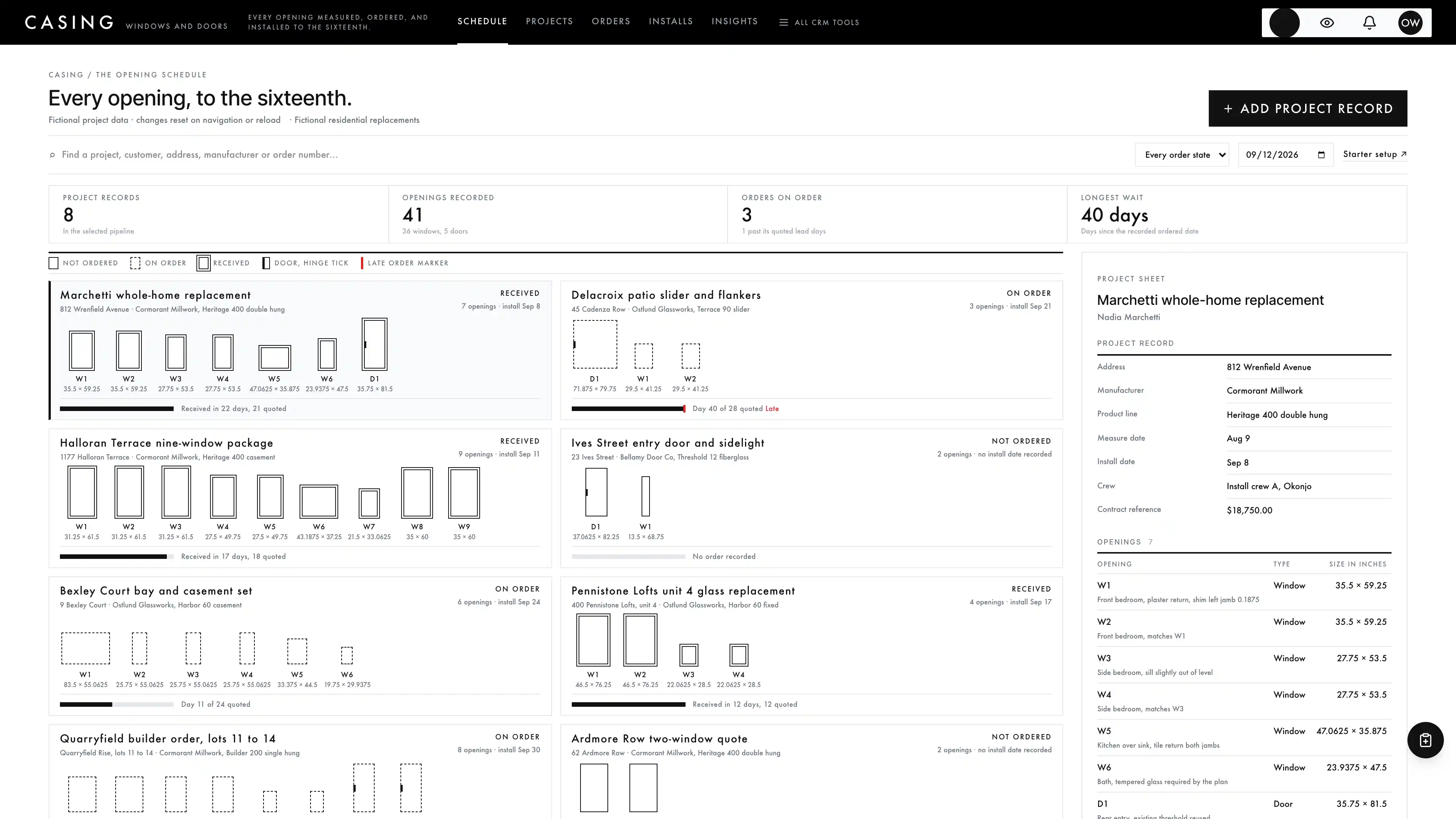
Window and door replacement is a measuring problem followed by a waiting problem. Somebody records a rough opening to the sixteenth of an inch, and every number after that depends on getting it right, because a window is built to the size on the order and cannot be adjusted on site. Then the order goes to a manufacturer who quotes a lead time in weeks, and nothing gets installed until a truck arrives. Casing answers all of it on one screen: each project is a wide card whose openings are drawn as tiles to relative scale, plain while nothing is ordered, hollow while the order is out, and ringed once it is received, with a bar under them showing how long the order has been waiting against what the manufacturer promised.
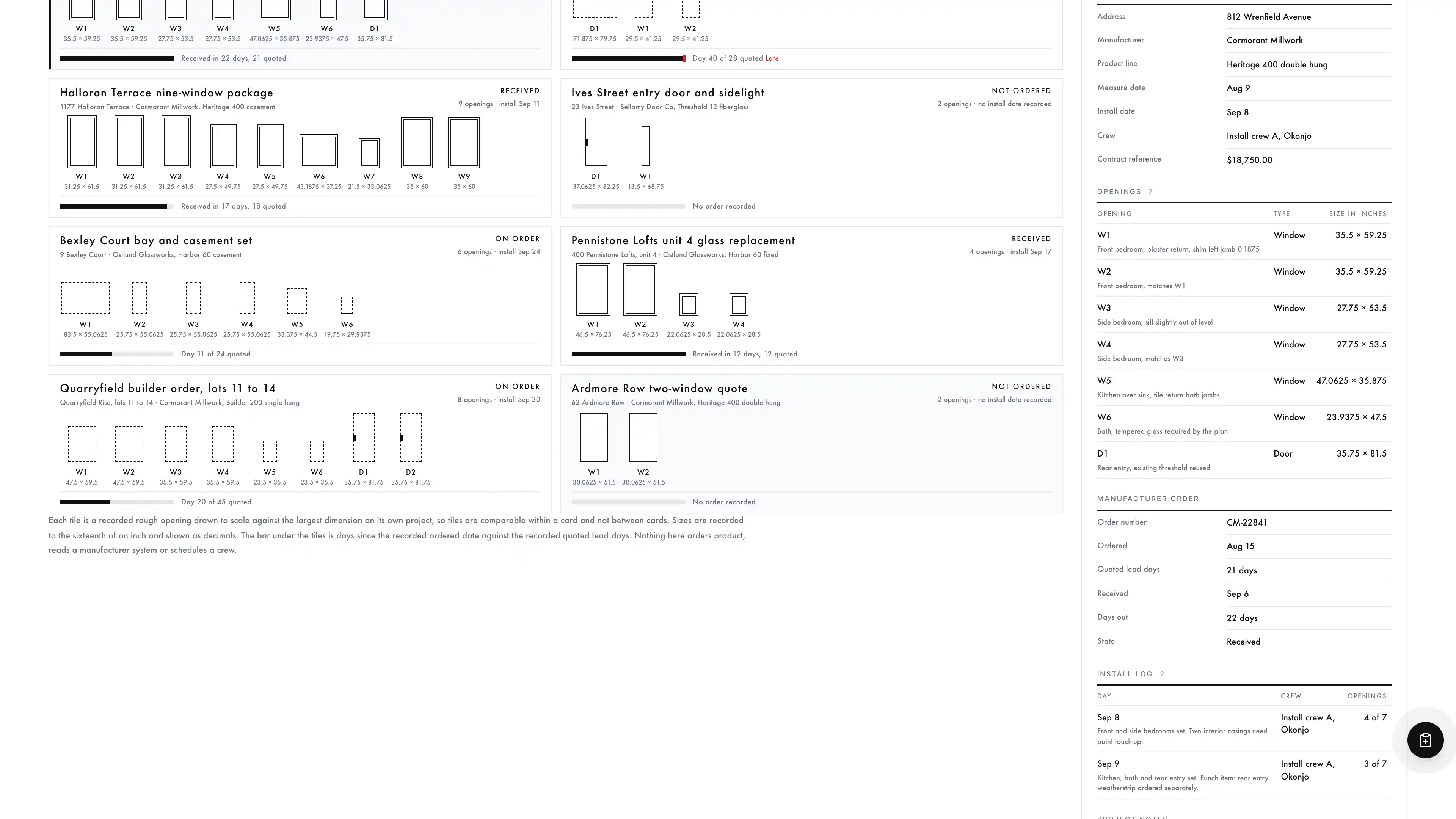
One wide card per project. Every recorded opening is a rectangle as wide and as tall as the rough opening somebody measured, scaled against the largest dimension on that same project, labelled W1 or D1 with its size in inches beneath it. Doors carry a small hinge tick. A tile is plain when nothing is ordered, hollow while the order is out, and ringed once the order is recorded as received.
Selecting a card opens its sheet beside the board: the project record with the address, manufacturer and product line labels, measure date, install date, crew label and contract reference, then the openings table with every recorded size and rough opening note, the manufacturer order with its order number, ordered date, quoted lead days, received date and days out, and the install log with the crew, the openings completed and the punch items.
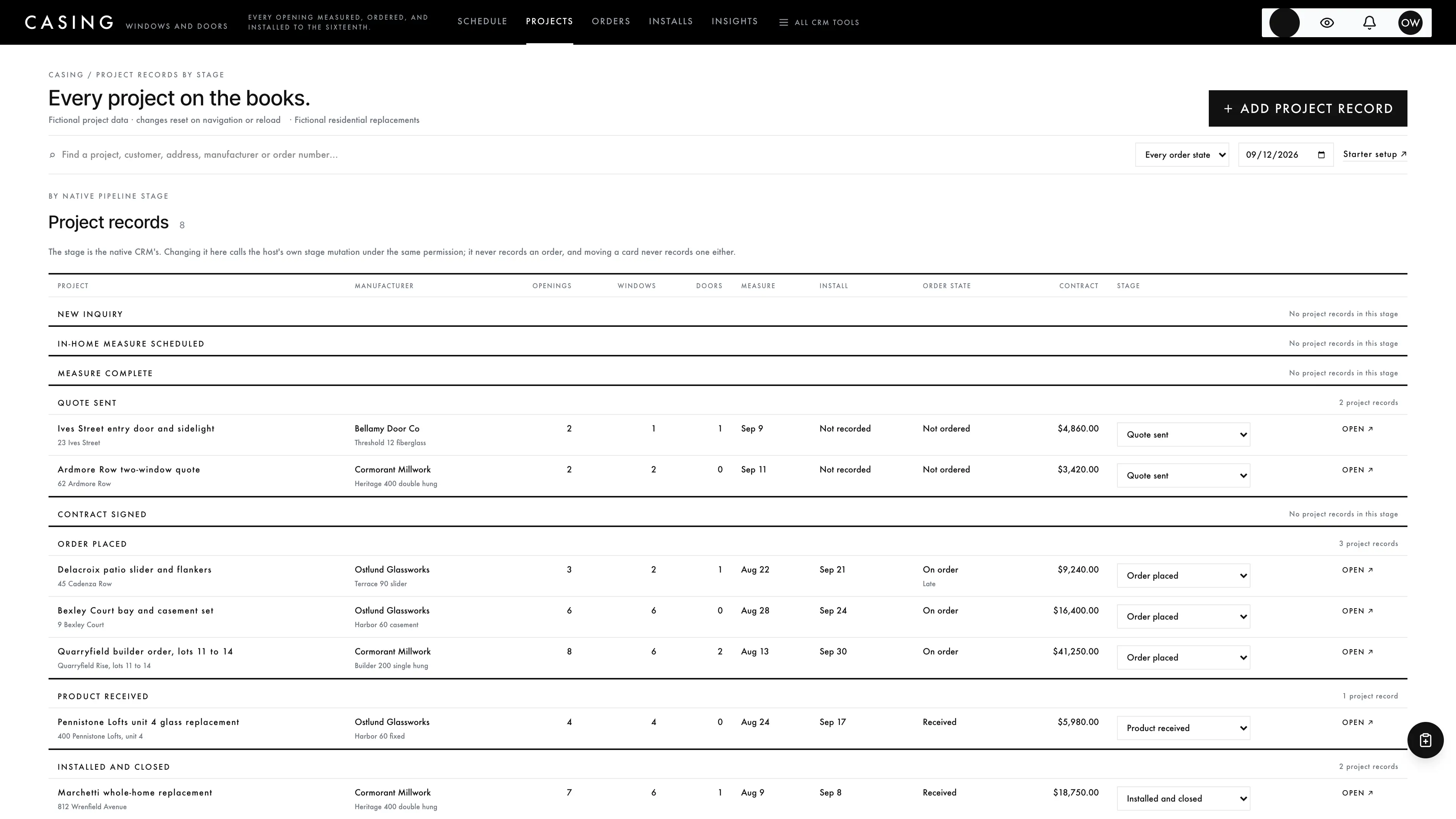
Every project grouped by its native pipeline stage, with the manufacturer label, the recorded opening count split into windows and doors, the measure and install dates, the order state and the recorded contract reference. The stage select beside each row is the keyboard and assistive equivalent of moving the card in your CRM.
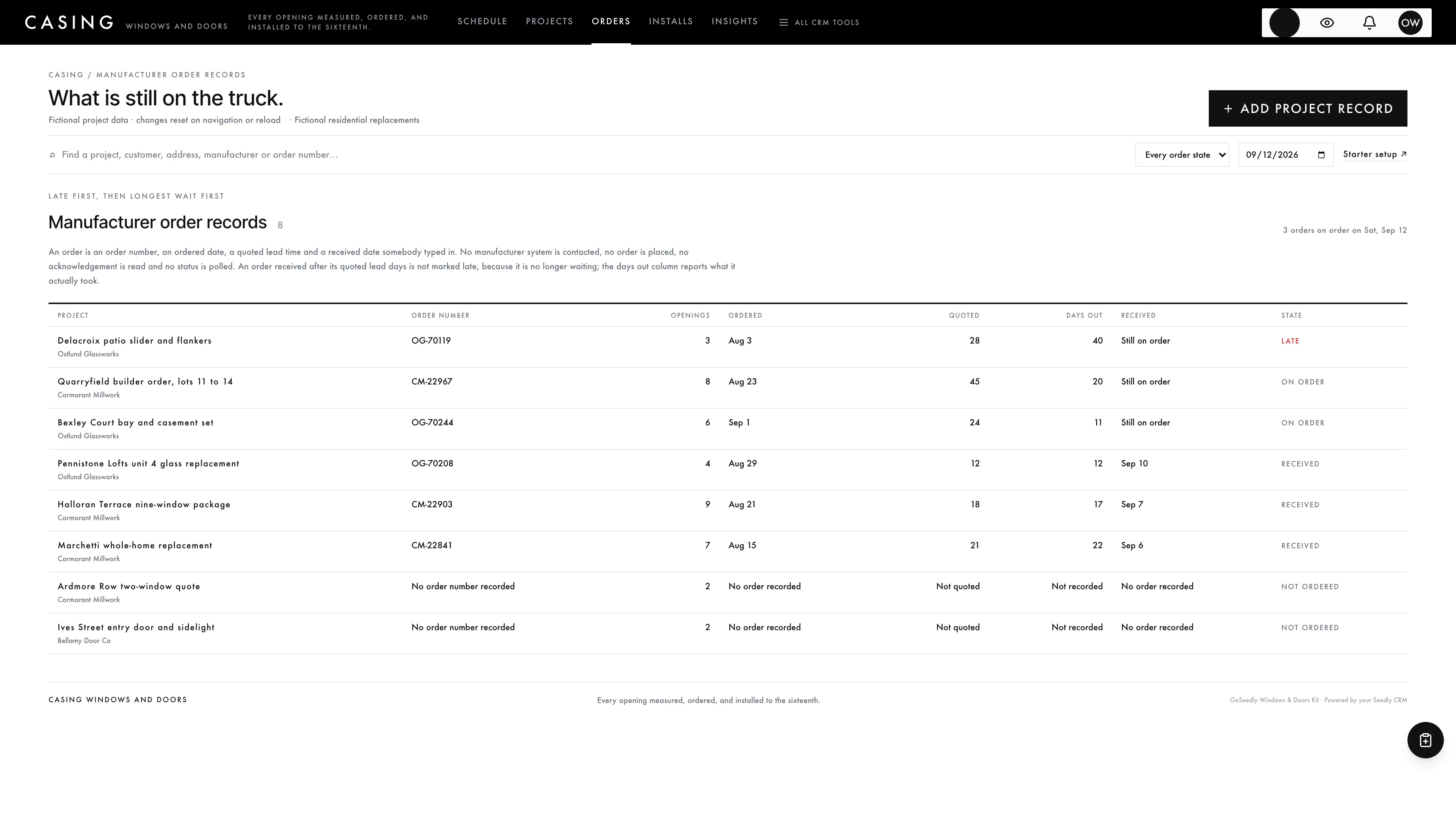
Every manufacturer order in the order somebody needs to work it: anything still out past its quoted lead days, then the rest of the on-order rows longest wait first, then the received orders, then the projects with nothing ordered. Each row carries the order number, the ordered date, the quoted lead days, the days actually out and the received date.
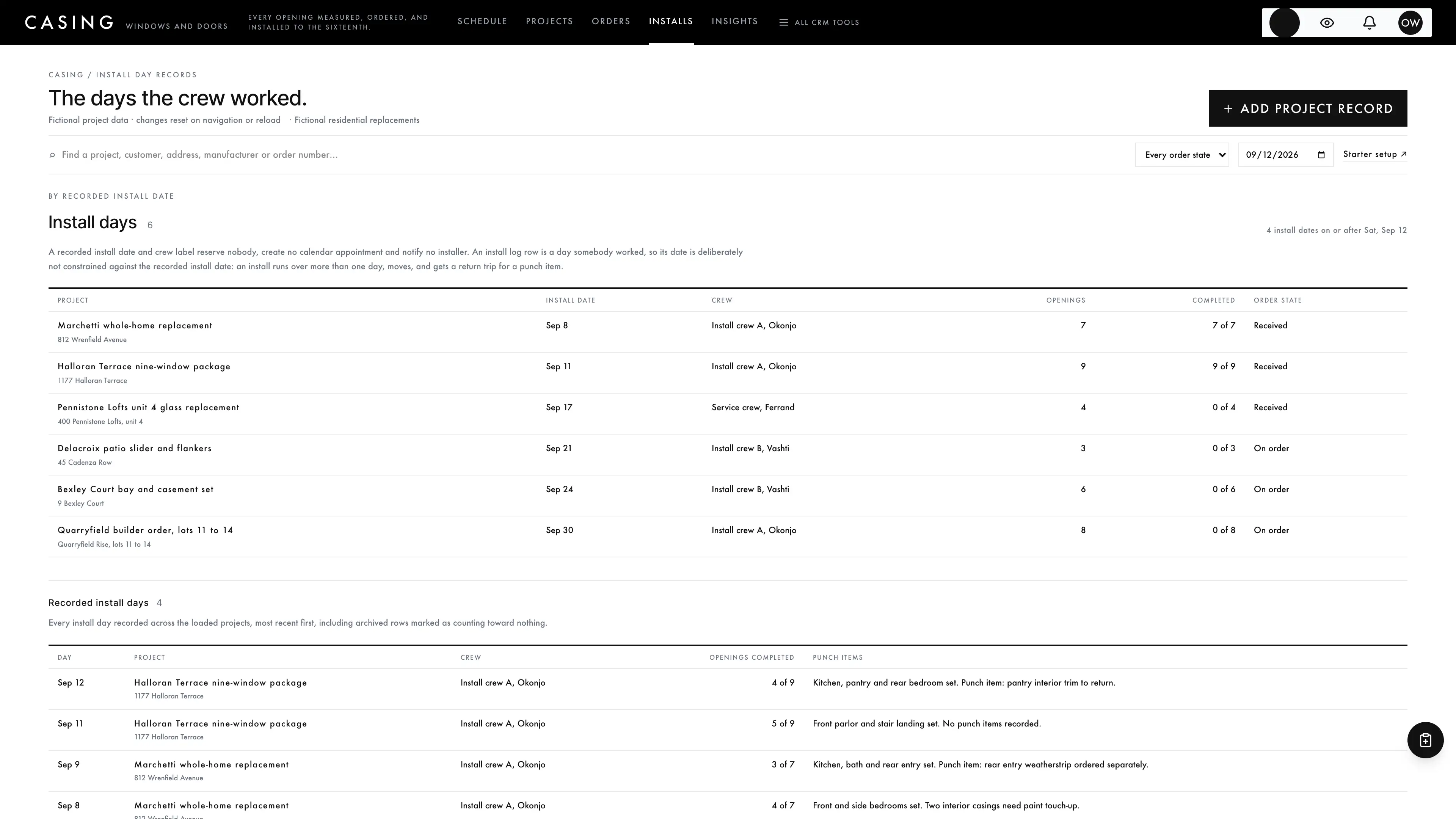
Projects in recorded install date order with the crew label, the recorded openings and how many are recorded as completed, then every recorded install day across the loaded projects with its crew, its completed count and its punch items note. An install day is a day somebody worked, so its date is deliberately not constrained against the scheduled install date.
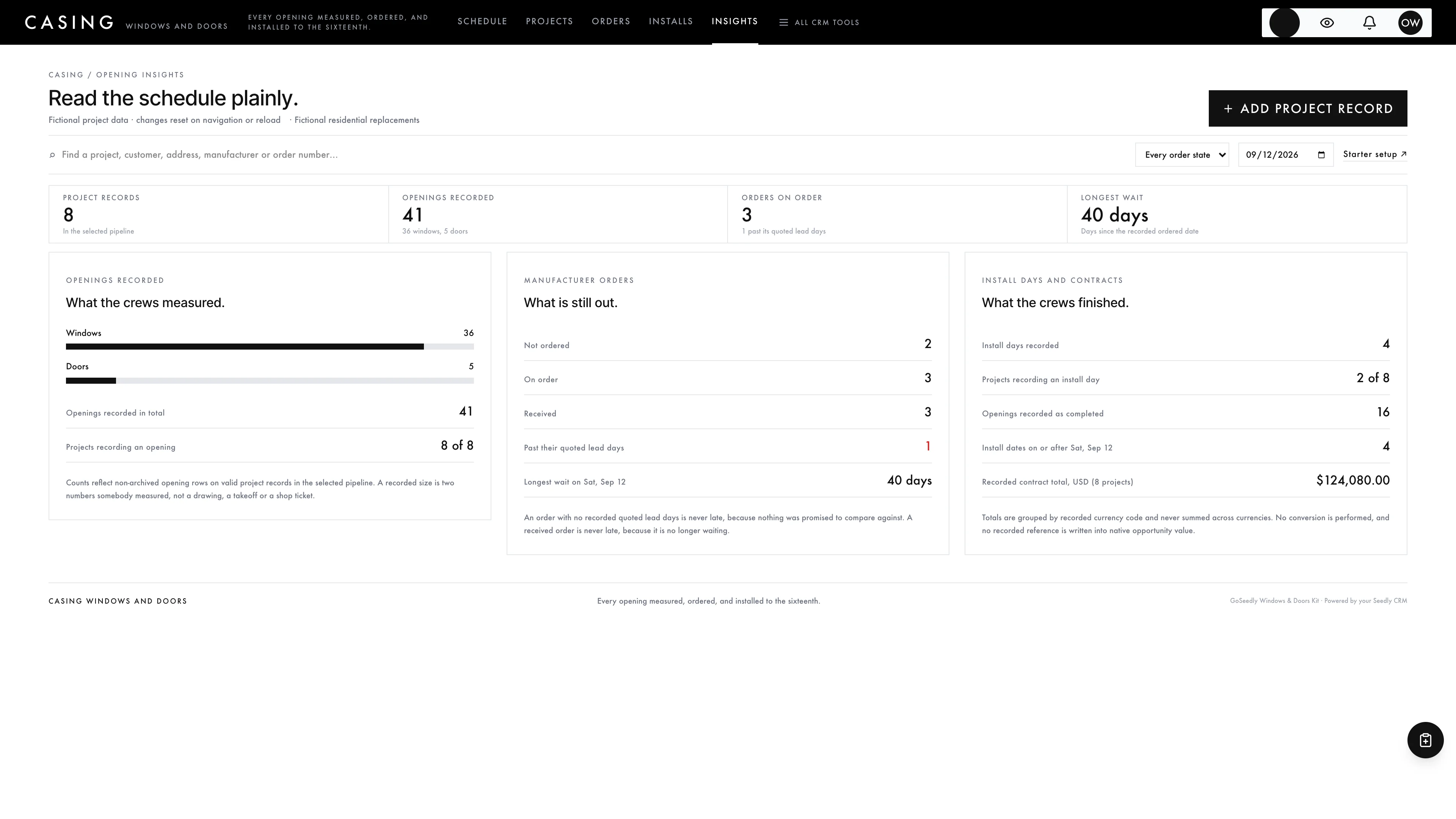
Recorded openings split into windows and doors with the projects that recorded any, order state counts with how many are past their quoted lead days and the longest current wait, install day counts with the openings recorded as completed, and recorded contract totals grouped by currency.
YOUR PROCESS, YOUR STARTING POINT
Useful structure. Only what you choose.
4 pipelines and 9 workflow drafts. Add the parts that match your work, with a separate sample view for exploring the interface.
01 / FOUR PIPELINES
Choose your starting structure.
Use a ready-made stage sequence or connect drafts to a suitable existing pipeline.
Residential replacements · 8 stages
New construction and builder orders · 7 stages
Entry and patio doors · 7 stages
Service and warranty calls · 7 stages
02 / NINE WORKFLOW DRAFTS
Give the next step a shape.
In-home measure review
Quote follow-up review
Order placed record
Install complete walkthrough review
Lead-time check review
Install scheduled record
Late order follow-up review
Day-before install review
Warranty registration reminder
Native trigger, task, wait, and note nodes provide editable examples. Every draft stays inactive until you review and publish it.
03 / SAMPLE WORKSPACE
Explore before adding records.
Explore eight fictional projects carrying 41 recorded openings, 36 windows and 5 doors, from a two-window quote to a nine-window package and a four-lot builder order. Three orders are on order and exactly one of them is past its quoted lead days, so the single red late marker is on screen without editing anything. Three orders are recorded as received and two of those projects record install days, so the ringed tiles, the hollow tiles and the plain unordered tiles all appear at once. Example edits stay in the current page memory and reset on navigation or reload; sample projects are never inserted into your CRM.
No sample customers are inserted into your CRM.
Starter setup checks selected kit additions before removal and preserves edited records and live work.
THE KIT, UNPACKED
Your workspace. Your starting point. Your code to edit.
A project is a native contact-linked opportunity with a namespaced service address label, manufacturer label, product line label, measure date, install date, crew label, manufacturer order number reference, ordered date, quoted lead days, received date, project notes, an immutable supported currency, opening rows with their type and their width and height in inches, and install day rows with their crew label, openings completed and punch items note. The recorded contract reference stays separate from native opportunity value. Other custom fields are preserved.
Opening schedule of wide project cards whose tiles are rough openings drawn to relative scale from sizes recorded to the sixteenth of an inch
Three order states drawn on the tiles themselves, plain, hollow and ringed, read from the recorded ordered and received dates
A lead-time bar under every card showing days out against the quoted lead days, with a red end marker only while an order is still waiting past its quote
One shared order and lead-time implementation used by the editor, every view and the record, so a stored state can never disagree with its dates
Projects by native stage, an order queue with late first and longest wait first, install days with their punch items, and insights that state how many projects each partial total covers
Archive-only opening and install day records with stable IDs, so a measured opening or a day somebody worked is never erased
Single black chrome bar over a white measuring canvas, strictly monochrome, with no image, SVG or icon file anywhere in the kit
Four optional pipeline templates and nine inactive workflow drafts
Eight fictional in-memory projects carrying 41 recorded openings and four recorded install days
Guided setup, compatibility report, and private rollback receipt
AI-agent documentation for customized installations
Original editable source, configuration, and tests
Run the guided setup from the extracted kit. Supported integrations can be installed directly; customized integration files get a reviewed merge.
02
Connect the required helper.
Deploy the included helper from your authoritative backend source before connected edits. Build your web app, then choose any optional pipelines and drafts you need.
03
Set up your own team.
Edit company name, descriptor, promise line, and default pipeline name. Sign in with your account and verify the workflows and permissions your team uses.
Compatibility and operational details
Seedly CRM 5.8.4 · extension API 1. Node.js 20 or newer. The installer checks supported integration-file versions and does not deploy your web app or backend. The included original project helper is required for connected creation, editing and starter setup. It preserves native account permissions and unrelated custom fields, re-checks the sixteenth-inch size rule along with the order, crew, measure and install day rules, and compares the current record state before saving. It exposes no stage mutation at all, so pipeline stages stay in the CRM views you already use, under your existing roles. Deploy the helper from your authoritative backend source before connected edits. Pipeline presets and workflow drafts remain optional.
A recorded width or height must be a multiple of one sixteenth of an inch between 6 and 240, and the server re-checks the multiple, because a size that drifted through a rounding bug is a window built to the wrong number. Sizes read as decimals everywhere, width first, then a multiplication sign, then height. Tiles share one scale factor per project, drawn from the largest recorded dimension on that same project, so two openings on one card are comparable and two openings on different cards are not; this is stated in the interface as well. The order state is derived from two dates: received when a received date is recorded, on order when only an ordered date is, and not ordered otherwise. Elapsed days run from the ordered date to the received date when one is recorded and to the selected date otherwise, and are never negative. An order is late only while it is on order, a quoted lead days value is recorded, and the elapsed days exceed it, so a received order is never marked late and an order with nothing quoted never is either. Evidence rules are identical on the client and the server: a received date requires an ordered date it does not precede, an ordered date requires at least one recorded opening, an order number or quoted lead days requires an ordered date, a crew label requires an install date, an install date requires a measure date, and an install day cannot complete more openings than the project records. Three non-rules are deliberate: an install day date is not constrained against the scheduled install date, an install date is not required to fall after a received date, and two install days may share a date. There is no manufacturer ordering or configurator integration, no pricing or quoting engine, no energy rating data of any kind, no scheduling engine, no invoicing or payments, no customer messaging and no CAD. The tiles are proportional rectangles from two recorded numbers, not drawings, elevations, shop tickets or a takeoff, and they are not to an absolute scale. Totals are grouped by currency and never added across currencies. The pipeline stage stays the one in your CRM: recording an order never moves a card, and moving a card never records an order.
Calling, messaging, signing, payments, and external integrations depend on your Seedly installation, account permissions, plan, and configured providers. Screenshots use sample data and reference imagery. Hosting, installation, and ongoing maintenance are your responsibility.
Checking access…
DEVLAUNCH ALL ACCESS
Every kit. And everything else.
DevLaunch All Access includes every GoSeedly CRM kit, all 195 available today, along with every class, course, and product we release, and private calls with Aaron.
All 195 CRM kits
Every published kit as original editable source, with optional pipelines, workflow drafts, and guided installers. Browse the kits
Every class, course, and product
The full DevLaunch library and software collection, plus each eligible release during your access year, added to your portal as it ships.
Private calls with Aaron
Bring the idea, the offer, or the bottleneck, and leave with a plan you can follow.
DevLaunch All Access
Want more than one kit? All Access covers the whole CRM kit library and the rest of what we make. See everything it includes on the All Access page.
For your own compatible Seedly CRM. Seedly software, hosting and installation services are separate. Each full-interface kit uses its own web installation.
BEFORE YOU MAKE IT YOURS
Good questions. Clear answers.
How do I receive the kit?+
Purchase securely through Whop. Your original source ZIP and installation documentation are delivered manually to the email used at checkout. This is a one-time purchase of this kit; Seedly software, hosting, and installation services are separate.
Does this include Seedly CRM?+
You obtain and configure Seedly separately. The kit adds original frontend screens, a shared theme, starter definitions, and integration instructions. It does not include Seedly’s codebase, license, hosting, or a separate CRM database.
Is this one connected workspace?+
Casing keeps its window and door navigation in one black chrome bar across the original schedule views and native CRM modules. Full CRM tools remain available within the same signed-in account and application theme. Contacts, Calendar, Estimates, Documents, and other full modules retain the functionality supplied by your own Seedly installation. Existing authored content and provider screens retain their own layouts.
Can I use it with existing customizations?+
Yes, with a compatibility review. The installer checks the supported integration files. Changed integration files need a reviewed merge; the included AI-agent guide explains how to preserve custom extensions, permissions, providers, and routes.
Do I have to import all the starter content?+
No. Choose individual pipelines and workflow drafts, use a compatible existing pipeline, or install none. Workflows remain inactive until reviewed and published. They use native triggers, internal tasks, optional notes, and timed waits. A wait does not verify task completion or recheck the current stage. The included drafts do not send customer messages.
Can I remove the examples and starter content?+
Sample records stay in memory and never create customers in your CRM. Leave sample mode to return to your account. Starter setup lets you review removal of unused kit additions; server checks retain edited or published workflows and pipelines with live work or references. Removing the frontend does not delete account records.
Can different subaccounts use different kits?+
The current design and branding apply to the whole web installation. Subaccounts still separate data and access. Use a separate web installation for another full-interface kit; running different kit designs by subaccount in one installation requires additional customization.
Selected excerpts from reviews of DevLaunch training, software, and services. Individual customer experiences across DevLaunch.
Your privacy, your choice.
We use essential storage to keep the site working. With your permission, we also use analytics and the Whop Pixel to understand visits and advertising results. Optional analytics stay off until you choose.
 01 / Opening schedule