
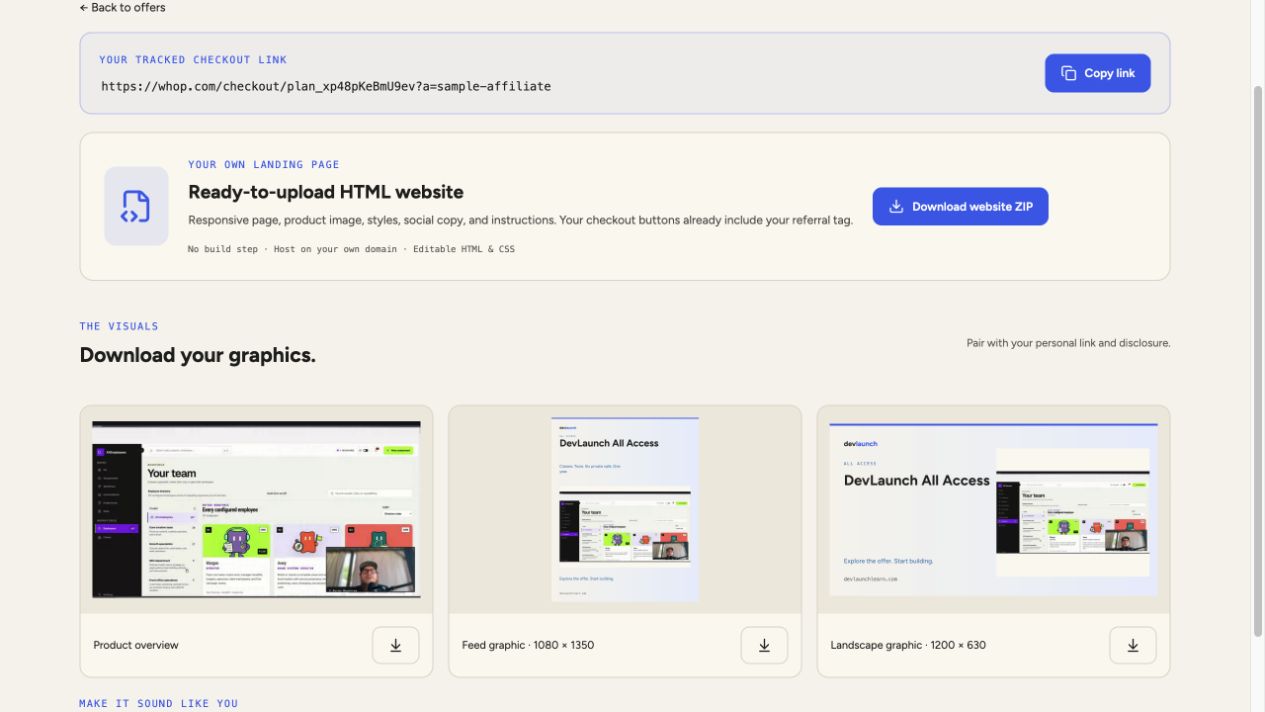
1. Download your personalized package
- Open the offer’s campaign kit while signed into your own connected account.
- Select Download website ZIP and wait for Your download is ready. Find the ZIP in your browser’s downloads.
- Extract the ZIP before opening index.html. Opening the HTML inside an archive can prevent images and styles from loading.
The real download includes your connected Whop referral tag. The screenshot uses a sample tag for privacy; never copy a referral URL from a documentation screenshot.
2. Know what is in the ZIP
index.html is the landing page. assets/styles.css controls its appearance, and the product image is in the same assets folder. copy.md contains suggested campaign copy. README.md explains publishing and what to keep intact.
The package is a static HTML website. It does not need a build step and does not include a lead form, email service, or website hosting. It is not a one-click import file for a funnel builder or CRM.
3. Make the page yours
- Open index.html in a text or code editor. Add a short introduction, your relevant experience, and a clear reason the product might fit your audience.
- Preserve the full Whop checkout URL in every purchase button, including the ?a= referral tag.
- Keep the affiliate disclosure and official product-information links. Check the live offer before changing pricing or features.
- Save your edits, reopen the page, and check text, images, and every button.
4. Upload to your website
- Use a static website host or the file manager for your existing hosting account. Upload index.html and the entire assets folder together.
- If publishing at example.com/recommended-tool/, place both index.html and assets inside that recommended-tool folder. Do not flatten or rename the asset paths.
- Open the public URL in a browser. Confirm the page loads over HTTPS, the product image appears, and the layout works on your phone.
- Open each checkout button and verify the product and your referral tag. If using a website builder, reproduce the layout there and paste your complete personal link into its buttons.
5. Keep your published offer current
Downloaded pages do not update themselves. Regenerate the package when the offer, price, product features, or your Whop username changes. Reapply your edits and replace the old files on your host.
For All Access, the current installment offer is four required monthly payments of $2,500 ($10,000 total). The upfront option is $8,500 by emailing hello@devlaunchlearn.com. The page’s email link includes referral information for the team to review; an email conversation does not automatically create Whop attribution.
Common fixes
- Missing images or styles: upload the complete assets folder next to index.html and keep filenames unchanged.
- Old content still showing: confirm you replaced the files in the published folder, then refresh or clear your host’s cache.
- Wrong affiliate username: sign into your own connected dashboard and download a fresh ZIP. Do not reuse another affiliate’s package.
- ZIP download failed: refresh your Whop connection and try again. If the offer disappeared, choose a currently available offer.